Looking for a GoPlay 11 APK old version, or fixing an update that will not install? Start with the version checks below, then follow the Android installation steps. Need the current entry first? Use the GoPlay APK download guide.
Guide updated: 30 September 2026. Public source checked: 29 September 2026. GoPlay India is an independent affiliate guide. Our links open the platform; we do not host an APK, operate games or process withdrawals.
APK access steps · Android installation · Game guides · Withdrawal checks
GoPlay 11 APK old version: check this first
If you searched for a GoPlay 11 APK old version because a recent update failed, identify the problem before replacing the app. A download that stops, an Android installation error and a login failure need different checks. Reinstalling an older package may not resolve any of them.
Old-version availability: the goplay11.com entry redirected to web-in.goplaycom.com/en when checked on 29 September 2026. Its public page displayed Download, but the entry and help areas we inspected did not provide a verified version archive, release history, file size or minimum Android version. This guide does not host an old-version APK.
Compare the installed and offered versions
- Open your phone’s Settings → Apps → GoPlay → App info and look for the installed version. The path and placement vary by device.
- Note your phone model, Android version and the exact error message. If an update failed, also note whether the older installation still opens.
- Compare those details with the version and requirements supplied by the same provider. Ask for clarification if the provider does not publish them.
- Keep your recovery method available before any reinstall. Check what will happen to local app data; do not assume uninstalling preserves everything.
Choose between an update and old-version help
The download is incomplete
Check your connection and storage, then obtain a complete file from the current provider. Switching to an old build does not repair a partial download.
Android says “App not installed”
Use the installation error checklist. Compatibility, storage, package conflicts and signing differences are possible causes; the message alone does not tell you which one applies.
You want to return to an older build
Ask whether the provider supports that build on your Android version and whether a downgrade is supported. Android may reject a lower-version package over a newer installation. Do not bypass that check or remove a working app just to force an install.
The app opens but an account feature fails
Use the provider’s current account help. An older package may no longer be accepted by the service and cannot restore a forgotten password or resolve a pending transaction.
If someone offers you an old APK
Confirm that the file comes from the same provider and that its intended version is supported. A date in a filename, matching icon or familiar package name is not proof of origin. Where the provider publishes signing or checksum information, compare against that trusted reference; we have not verified such a reference for the current GoPlay package.
Keep device protection enabled. If a package is flagged as harmful or the signing identity conflicts with the installed app, stop and obtain clarification. Avoid “MOD”, patched and “unlimited money” downloads. For the current access route, return to the GoPlay APK latest-version checks.
Check the APK Source Before Installing
This guide uses “GoPlay” and “GoPlay11 APK” for the gaming platform linked from this site. Other products use similar names. Match the destination and publisher to the product you intend to use. Our referral button opens the platform; it is not a direct APK file link.
We have checked the public Download control, but have not installed the current package or verified its signature, version, minimum Android requirement or app-store availability. A direct download is a distribution method, not a safety certification.
Before You Start: Check Source and Compatibility
- Check the current minimum Android version and file size shown by the download provider. Do not rely on an old version number copied into a guide.
- Leave free storage for installation and updates, and use a stable connection. An interrupted download may be incomplete.
- Use a device and account you control. Make sure you can recover your existing login before changing an installed app.
- Check current eligibility, local requirements and platform terms. The guide does not establish whether the service is available or lawful for your circumstances.
Find the Android Installation Permission
| Device setting | What to check |
|---|---|
| Android 8 and later | Installation from unknown sources is generally controlled for each source app, such as the browser or file manager. Search Settings for “Install unknown apps”. |
| Older Android versions | Some use a system-wide “Unknown sources” setting. Check current compatibility before installing; an old Android version may be unsupported. |
| Manufacturer variations | Samsung, Xiaomi and other manufacturers may use different menu names or additional prompts. Follow the device’s own instructions and keep protection enabled. |
Permission to install does not establish that the downloaded file is safe. If a device blocks the package as harmful, stop rather than switching off scanning.
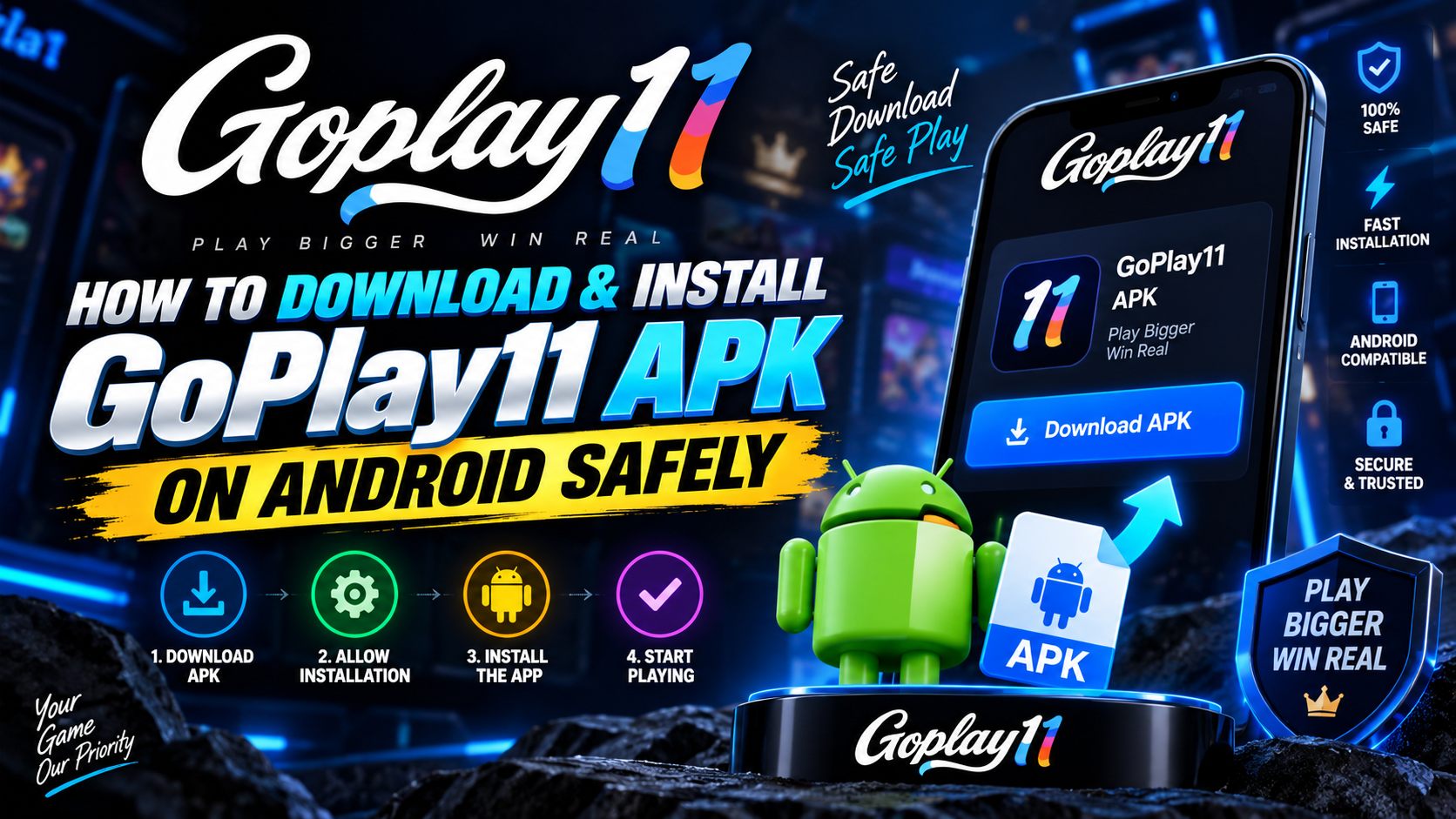
Install the Downloaded APK on Android
Open the platform
Use the button on our download page. It opens web-in.goplaycom.com; the public platform page checked on 29 September 2026 has a separate Download button at the top.
Review the download
Use the platform’s Download control. Check the destination, current package details and device requirements before accepting a file. If the source is unclear, stop and use platform support.
Review Android warnings
Keep Play Protect and other device protection enabled. Read warnings in full; do not override a harmful-app warning. A familiar name or icon does not establish that a package is safe.
Allow installation if appropriate
If you have checked the source and choose to proceed, Android may ask you to allow the browser or file manager to install unknown apps. Menu names vary by device. Grant only the required source permission.
Install and revoke permission
Open the downloaded package and follow the Android prompts. Revoke the source installation permission afterwards. Review requested app permissions before granting them; installation time depends on the device and build.
Check account access
Open the app and follow its current sign-in instructions. Check eligibility and terms before providing personal information. Do not share passwords, OTPs or a UPI PIN with anyone offering help.
Open the GoPlay Platform
Check current download options, account requirements and terms on the platform. This independent guide does not manage accounts.
Download Goplay 11 apkReview Permissions Before Granting Access
We have not audited the permissions requested by the current GoPlay APK. The following is a review checklist, not a verified list of what this build requests.
| Permission or access | Review question |
|---|---|
| Camera or photos | Did you intentionally start a feature that needs it, such as document upload? Prefer limited access if the device offers it. |
| Notifications | Do you want the messages? Review notification controls independently of installation. |
| SMS, contacts or call history | What documented feature requires this access? Deny unexplained requests and ask the provider before proceeding. |
| Accessibility or device administration | These can grant powerful control. Do not enable them just because an installer or an unknown helper tells you to. |
If denying a permission prevents a feature from working, check its explanation in the current app or contact platform support. Do not grant broad access merely to dismiss a prompt.
Read Download and Play Protect Warnings
Browser download warnings, source-installation prompts and harmful-app warnings describe different checks. Read the complete message and its recommended action. A source-installation prompt alone is neither a malware finding nor an assurance of safety.
If Play Protect identifies a harmful app, delete the file and stop. For an unfamiliar or unclear notice, use the device’s help and ask the provider for verified package information. Never disable protection to satisfy instructions from a download page or a chat contact.
Check for Lookalike or Repackaged Files
- Avoid packages advertised as “MOD”, “unlimited coins”, “predictor” or guaranteed wins. Those claims do not establish any relationship to the platform.
- Compare the full domain, not just the page logo. Be cautious with links forwarded through comments, messages and unofficial support accounts.
- A filename, icon, file size or HTTPS padlock alone cannot prove authenticity. Unexpected differences need investigation.
- An installer does not need you to send a helper your bank password, OTP or UPI PIN.
Verify File Details
Compare package information with details supplied by the verified publisher. Where a publisher provides a checksum or signing certificate, it can help detect changes, but the reference itself must come from a trusted source. This guide does not publish a verified checksum or package signature.
Check Storage, Data and Battery Use
Use Android’s per-app storage, mobile-data and battery screens to measure actual usage. Cached media and updates can increase storage beyond the download size. Streaming content may use more data than static screens; no GoPlay-specific usage benchmark has been verified here.
Try a stable connection and close unnecessary background apps if performance is poor. Review the consequences before changing battery restrictions. Clearing app data or uninstalling can remove local settings and sign you out, so check your recovery method first.
GoPlay APK Installation Errors: Find Your Symptom
| What you see | What to check next |
|---|---|
| Download does not start or stops | Check connectivity and free storage, then use the platform download entry again. If no Download control is available, ask the platform for the current access route. |
| File will not open or shows a parse error | Check that the download completed and that the provider supplied an Android package for your device. Compare the current Android requirement with Settings; renaming a file does not repair it. |
| App not installed | Check free storage, Android compatibility and whether another installed package conflicts. Record the exact message before changing anything; do not delete the existing app merely to force installation. |
| Update or signature conflict | Use the same verified publisher and follow its update instructions. Stop on a signature or package conflict and ask the provider before uninstalling or clearing account data. |
| Browser or file manager lacks permission | For a source you have checked, review the source-specific installation permission. Grant only what is needed for installation, then revoke it when finished. |
| Play Protect or another security warning | Read the full message. If the file is identified as harmful, stop; do not disable protection or override the warning. |
| Installed app will not launch | Record the device model, Android version, package version and exact error. Check the current provider requirements and use its support route without sharing passwords or OTPs. |
Update the APK and Keep Account Access
Check the update instructions and version offered by the same verified publisher. Do not assume a package with the same icon is a valid update. If Android reports a signature or package conflict, stop and ask the provider rather than uninstalling your existing app to force the change.
Before uninstalling, make sure you can access the account and understand what local data will be removed. Uninstalling an app does not necessarily close the account or resolve an outstanding transaction.
After Installation
- Review app permissions and notification settings.
- Revoke the browser or file manager’s installation permission when finished.
- Use current platform instructions for account access and verification.
- For payment questions, use the withdrawal status guide; the website cannot inspect your account.
Choose the Right Next Step
Need the platform entry point? Use the GoPlay APK access page. Need a broader overview? Read the GoPlay11 beginner and account-help guide. If the source, warning or compatibility remains unclear, wait for an answer from the provider before installing.
Sources and review notes
- GoPlay11 public entry and its redirected platform page: public Download control and help areas checked on 29 September 2026. No APK was downloaded or installed for this review.
- Google Android Help: Google Play Protect: device scanning and harmful-app warnings. General Android guidance is not a test of the GoPlay package.
Version, file size, signing identity, release history and minimum Android requirements remain unverified. App menus and service availability can change; use the provider’s current instructions.